



PDF Accessibility: A Practical WCAG-Aligned Guide
A practical guide to creating WCAG-aligned documents
PDFs are everywhere—reports, forms, policies, brochures, and more.
But accessibility isn’t.
Many PDFs still create barriers for people using assistive technologies like screen readers, keyboard navigation, or screen magnifiers.
Just like web pages, PDFs need to be accessible. That means clear structure, helpful text alternatives, and a logical reading order so people can use them effectively.
Accessible PDFs are typically aligned with WCAG 2.2 AA and may also follow the PDF/UA (ISO 14289) standard, which defines how PDFs can be structured for accessibility.
Making a PDF accessible takes more than just hitting “Export.” You need to build in structure, add tags, and check your work.
Here’s what goes into it.
What Makes a PDF Accessible
An accessible PDF allows users to:
- Navigate the document using headings (WCAG 1.3.1 Info and Relationships)
- Understand images through alt text (WCAG 1.1.1 Non-text Content)
- Read tables correctly with headers and associations (WCAG 1.3.1)
- Use forms with labels and keyboard navigation (WCAG 2.1.1 Keyboard, 3.3.2 Labels or Instructions)
- Read content in the correct logical order (WCAG 1.3.2 Meaningful Sequence)
- Access content with screen readers
If these pieces are missing, assistive technologies may read the document incorrectly—or not at all.
In many cases, that means the information is effectively unusable.
The Accessible PDF Process
1. Start with an Accessible Source Document
Start with an accessible source file whenever possible. It makes everything easier.
Common source formats include:
- Microsoft Word
- PowerPoint
- Google Docs (with tools like Grackle)
- InDesign
When building your source document:
- Use built-in heading styles
- Create real lists instead of manual formatting
- Use proper table structures
- Add alt text for images
- Avoid using images of text (WCAG 1.4.5 Images of Text)
If the source document is accessible, the exported PDF is much easier to remediate.
2. Add Proper Document Structure (Tagging)
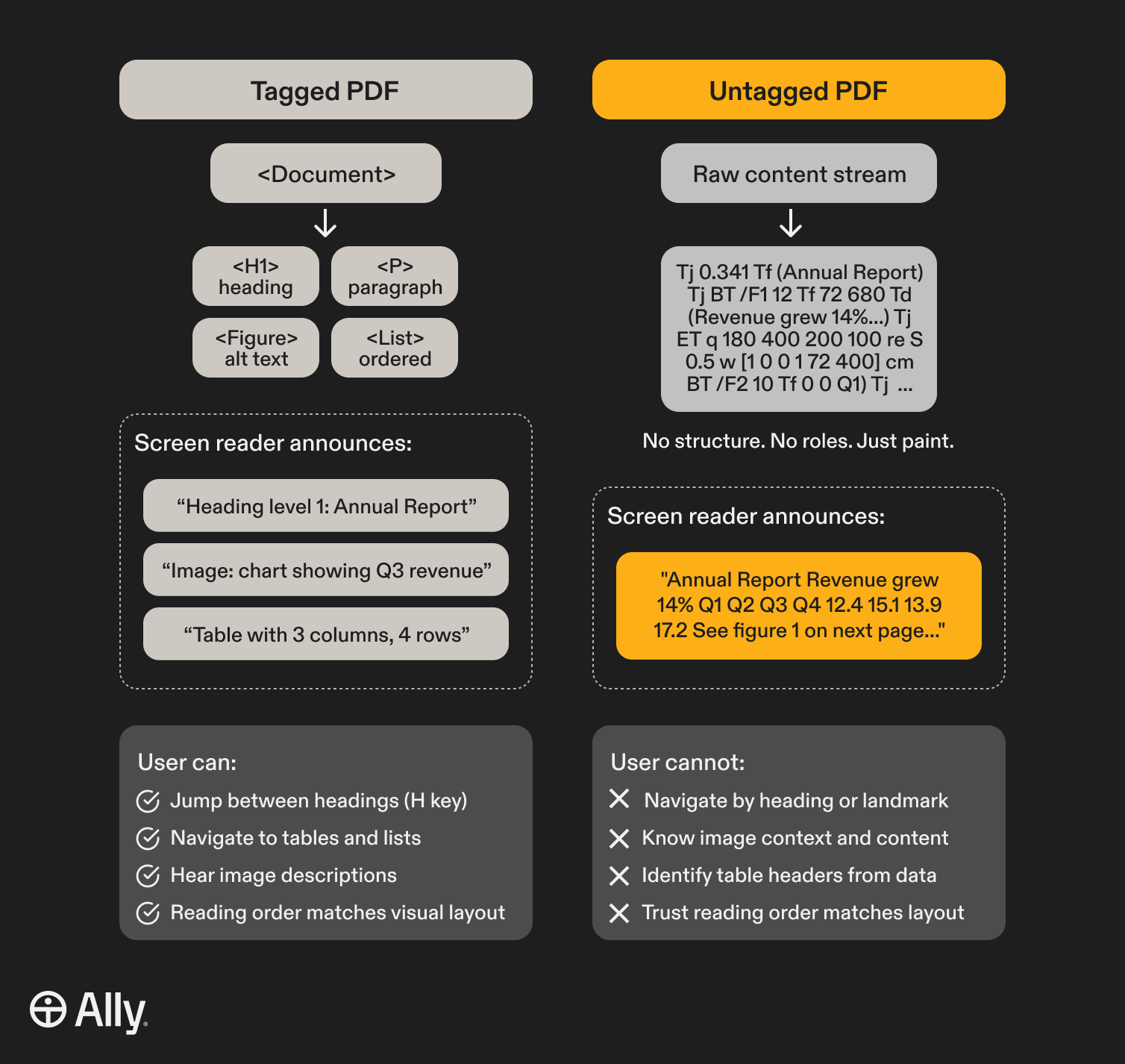
Tags give PDFs their structure. Assistive technologies rely on them to understand the content.
Tags define elements such as:
- Headings (H1, H2, H3)
- Paragraphs
- Lists
- Tables
- Figures (images)
- Links
Without tags, a screen reader may treat the entire document as one continuous block of text, making navigation difficult and, in many cases, unusable.
3. Ensure Correct Reading Order
Reading order determines how content is presented to assistive technologies.
The goal is simple: the reading order should match how a user would naturally read the document.
When the order is incorrect, content can become confusing or unusable. For example, a screen reader may jump between columns or read captions out of context.
Special attention is needed for:
- Multi-column layouts
- Sidebars or callout boxes
- Floating images or text boxes
Verify reading order manually using accessibility tools.
4. Provide Alternative Text for Images
If an image conveys important information, include alt text so the content is still communicated. (WCAG 1.1.1)
Alt text should describe what the image shows and why it matters.
Example:
Image: Chart showing yearly revenue growth
Alt text:
“Bar chart showing revenue increasing from $1.8M in 2022 to $3.4M in 2024.”
Best practices:
- Avoid phrases like “Image of…”
- Keep descriptions concise but meaningful
- Use longer descriptions for complex visuals when needed
If an image is purely decorative, mark it as an artifact so it’s ignored by screen readers.
5. Make Tables Accessible
Tables need proper structure so assistive technologies can interpret relationships between cells.
Accessible tables require:
- Header rows (and/or columns)
- Correct tag structure
- Logical reading order
- Header-to-cell associations
Without proper header relationships, a screen reader user may hear a stream of data with no context.
6. Check Color Contrast
Text and graphics must meet WCAG color contrast requirements:
- Normal text: 4.5:1 contrast ratio (WCAG 1.4.3)
- Large text: 3:1 contrast ratio
- Applies to text and meaningful non-text elements (WCAG 1.4.11)
Low contrast can make content difficult or impossible to read, especially for users with low vision.
7. Make Links Descriptive
Links should clearly describe their destination. (WCAG 2.4.4 Link Purpose)
Avoid:
- “Click here”
- “Read more”
Use:
- “Download the annual report”
- “View accessibility guidelines”
This helps users understand links out of context.
8. Label Form Fields (for PDFs with forms)
Accessible forms require:
- Programmatic labels (not just visual labels)
- Descriptive field names (tooltips)
- Keyboard navigation between fields (WCAG 2.1.1)
- Logical tab order
- Clear instructions and error messaging (WCAG 3.3.2)
Without labels, screen readers cannot clearly communicate what each field is for.
9. Add Document Metadata and Navigation
Accessible PDFs should also include:
- Document title
- Document language (WCAG 3.1.1 Language of Page)
- Language changes within the document (WCAG 3.1.2)
- Bookmark navigation for long documents
- Tagged PDF enabled
These details help assistive technologies interpret and navigate the document more effectively.
10. Test with Accessibility Tools (and Real Usage)
After making updates, test your PDF with accessibility tools and assistive technologies.
Common validation tools include:
- Adobe Acrobat Accessibility Checker
- PDFix
- PAC (PDF Accessibility Checker)
- Screen readers such as NVDA, JAWS, or VoiceOver
Automated tools are helpful, but they cannot determine full accessibility or WCAG conformance on their own.
Manual testing is needed to understand how the document actually works in practice.
Many PDFs still create barriers for people using assistive technologies like screen readers, keyboard navigation, or screen magnifiers.
Common Accessibility Issues Found in PDFs
Here are some common issues teams run into:
- Scanned documents with no selectable text (missing OCR)
- Missing or incorrect document tags
- Incorrect reading order
- Images without alt text
- Tables without headers
- Poor color contrast
- Unlabeled form fields
These issues often require manual remediation.
When PDFs May Not Be the Right Choice
In some cases, a PDF is not the best format for accessibility.
Consider using HTML instead when:
- The content is frequently updated
- The content is critical (e.g., policies, forms, essential information)
- You want a more flexible and accessible user experience
Web content is generally easier to maintain accessibly over time.
Important Note
In some cases, fixing an existing PDF isn’t worth the effort.
If accessibility wasn’t considered from the start, it’s often faster—and more reliable—to rebuild the document and export a new PDF.
Accessible PDF Checklist
Use this checklist when creating or reviewing PDFs.
Document Structure
✔ Uses proper headings (H1, H2, H3)
✔ Lists are created using real list formatting
✔ Tables include headers
✔ Document contains proper tags
Reading Order
✔ Matches visual layout
✔ Multi-column layouts read correctly
✔ Images and captions appear in the correct sequence
Images
✔ Meaningful images include alt text
✔ Decorative images are marked as artifacts
Tables
✔ Headers are defined
✔ Header relationships are correct
✔ Tables are not used purely for layout
Color and Visual Design
✔ Text meets WCAG contrast requirements
✔ Information is not conveyed by color alone
Forms (if applicable)
✔ Each form field has a label
✔ Tab order follows the visual layout
✔ Instructions and error messages are clear
Metadata and Navigation
✔ Document title is defined
✔ Document language is set
✔ Bookmarks are included for long documents
Testing
✔ Checked with accessibility tools
✔ Reviewed with assistive technology
Final Thought
Accessible PDFs are not a nice-to-have. They are often how people access essential information, apply for services, understand policies, complete forms, and make decisions.
When a document isn’t accessible, people are left out of that process entirely.
Not inconvenienced, excluded.
Accessibility ensures that your content can be used, understood, and acted on by everyone. Without it, the document may exist, but the access does not.